


Quick Guide
How to use AnKing with Bootcamp's Step 1 Qbank
How to use AnKing with Bootcamp's Videos
What is Anki?
Anki is a software program that provides a mechanism to review material through spaced repetition. The idea of having 10, 000 or even 40,000 flashcards to review may seem overwhelming. Let’s say you have 100 flashcards in a deck, but only 80 of those flashcards you know well. With spaced repetition, Anki will allow you to see the remaining 20 cards you are struggling with on a more frequent basis! This is more efficient for long-term learning and can strategically optimize your study time. The Anki FSRS algorithm does this for you and can be modified periodically to best suit your studying needs.
Important: There are two types of sync in Anki
Before you start, it's important to understand that Anki has two separate sync actions, and you need both to get the latest Bootcamp tags:
- Anki sync (AnkiWeb) — Syncs your personal progress (review history, suspended cards, scheduling) across your devices. This is the sync button you use daily.
- AnkiHub sync — Pulls the latest deck updates from AnkiHub into your Anki, including new Bootcamp tags and card edits. This is separate from regular Anki sync.
Some students may choose to turn off automatic AnkiHub syncing because AnkiHub pushes thousands of updates per day, which can slow down your workflow. That means you need to manually sync with AnkiHub every so often to get the latest Bootcamp tags.
If you're not seeing Bootcamp cards where you expect them, a manual AnkiHub sync is usually the fix.
What is AnKing?
AnKing is one of the most popular decks for Medical School made for Anki. With over 30,000 flashcards, AnKing covers material for Steps 1, 2, and 3. Some of the flashcard content is covered on the Bootcamp platform. For instance, you’ve just finished watching a video on Wilson Disease. AnKing has specific flashcards on its platform dedicated to Wilson Disease. These cards are also associated with a related Bootcamp video. After you’ve watched the Bootcamp video, you can go to AnKing and unsuspend the specific cards for that particular video!
How To Use AnKing with Bootcamp
If you have already purchased AnKing, please ensure that it is the most updated version, as Bootcamp is not supported by older versions, such as the free V11. It is important to be aware of all the AnKing updates at all times, as our updates and high-quality tags will only be available on the most recent version of AnKing. Please ensure that all Anking cards are in the suspended state. You can do this by clicking “Browse,” “Control A,” and then clicking “Suspend.”
Using AnKing with Bootcamp Qbank
After you submit a test, click 'Get Anki Cards' on the test results page, and click to copy the Anki card IDs to your clipboard. In Anki, paste it into Browse view to find all the relevant AnKing cards for your Qbank questions.
Using AnKing with Bootcamp Videos
Watch a Bootcamp video. For example, you plan to watch video 4 on Hyperparathyroidism from the Endocrinology unit. It is highly recommended that you watch the video in its entirety as well as answer all the sequential quiz questions, as some of the AnKing flashcards tagged will be from the prompted quiz questions.

Once you have watched the video. Go to browse in Anki:

You want to scroll until you see “Tags” and pick “#AK_Step1_v12”.
Then you will choose “#Bootcamp” and filter down to the unit>chapter>lesson you want.

Initially, the flashcards will be suspended when you first open the tab. You will need to unsuspend them:
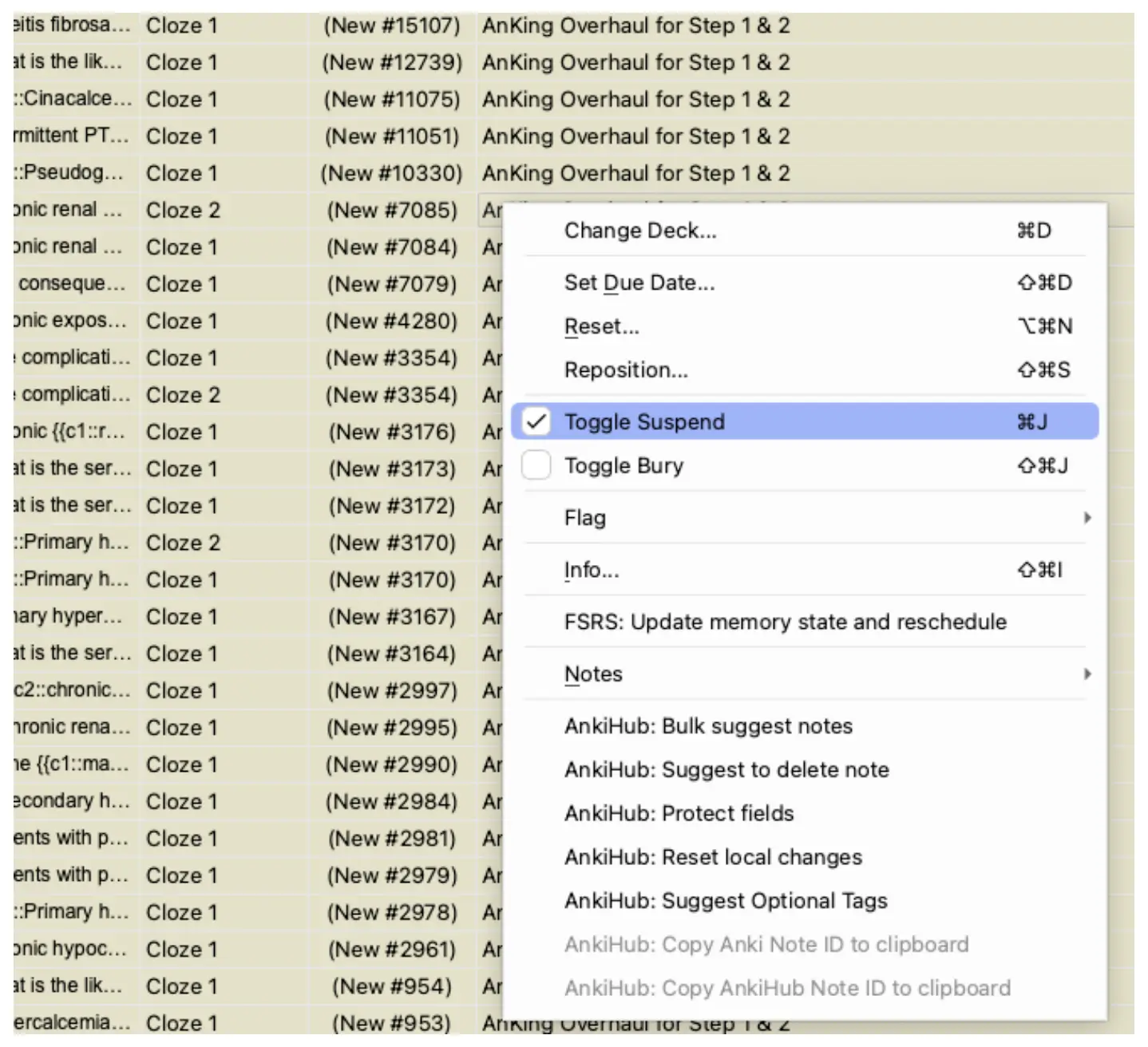
Once unsuspended, you will see the cards listed as “new” under your deck and you are ready to start reviewing your cards! As you continue to watch videos, keep unsuspending the flashcards.
FAQs
Q: Help! I can’t see the Bootcamp cards on AnKing or am having technical issues!
A: The most common cause is that you haven't recently synced with AnkiHub (this is separate from regular Anki sync — see the two-sync explanation above). Try manually syncing with AnkiHub first, then check for the Bootcamp tags again.
If that doesn't fix it, make sure you're on the latest version of AnKing (not older versions like the free V11, which aren't supported).
Since AnKing and Bootcamp are separate entities, Bootcamp doesn't have access to AnKing's technical support. If you've tried both of the above and still have issues, reach out to AnKing support directly. Click this link for AnKing's technical support.
Q: I think you guys tagged something in a video that shouldn’t be there / I think this video is missing good tags.
A: If you have noticed an error in the tagging or that we may have potentially missed out on tagging good cards, send us a message using the blue chat button (bottom-right of your browser window) or send us an email at team@bootcamp.com, and we will reach out to you as soon as possible. We always appreciate feedback to improve our Bootcamp.
Q: Do I have to update AnKing?
A: Yes! More specifically, you need to manually sync with AnkiHub to get our latest Bootcamp tags. At Bootcamp, we're constantly improving our tags, and those updates flow through AnkiHub, not through regular Anki sync.
Here's how to manually sync with AnkiHub:
- Open Anki on desktop
- Go to the AnkiHub menu at the top
- Click "Sync with AnkiHub"
- Wait for the sync to complete (this can take a minute if it's been a while)
We recommend doing this at least once a week so you always have the most current Bootcamp tags.
Q: Does Bootcamp make their videos from AnKing flashcards?
A: No, AnKing cards are typically tagged after the video content is created. This may lead to situations where not every detail in a Bootcamp video is covered. In these situations we would recommend utilizing the Bites questions after the video which are vertically integrated into Med School Bootcamp.
Get everything you need in one place. Start studying today for free.





